

It’s 2 a.m. The alert’s screaming. You’re SSH’d into the server, chasing a database performance incident, when you realize the offending database instance isn’t in your database monitoring tool.
It never was.
Someone spun up that database eighteen months ago for a “temporary” project, and it’s been sitting on your network ever since, unpatched, unmonitored, and now, apparently, on fire.
This isn’t a hypothetical.
For teams managing large numbers of database instances across sprawling, distributed infrastructure, rogue and unmonitored databases are an everyday reality.
Manual alternatives, periodic network audits, spreadsheet inventories, and relying on developers to self-report are slow and error-prone, and always one forgotten instance away from a database incident. Native database vendor tools often have visibility gaps and rarely give you a unified view across the mix of database platforms you actually run. Open-source network scanners require scripting expertise and produce raw output that doesn’t plug into your database monitoring workflow.
The result is a persistent blind spot. You can’t see it, fix it, or observe it if you’re not monitoring it, and you can’t monitor what you can’t find. Finding every database on your network has historically required more effort than most teams can consistently sustain.
Closing the Gap With Database Discovery in SolarWinds DPA 2026
The Database Discovery feature in SolarWinds Database Performance Analyzer (DPA) 2026.1 closes that gap.
This isn’t a generic port scanner bolted onto a dashboard. It’s a database-focused discovery engine, built around network scanning that feeds directly into DPA registration. You discover a database instance and act on that finding in the same workflow, helping reduce mean time to detect (MTTD) and mean time to resolve (MTTR) database performance issues.
DPA stores database discovery scan results in the DPA repository, so every DPA admin sees the same list of discovered database targets and can act on them. Nothing’s written outside your environment, and nothing leaves your network perimeter.
What makes this different from running a standalone network scanner is context. A raw scan can tell you a port’s open.
The DPA Database Discovery engine:
- Parses the network scan results
- Identifies the database type and version where available
- Compares findings to your already-registered DPA database instances
- Surfaces only net-new, unmonitored databases
- Presents them in a filterable list ready for registration into DPA
It also aggregates results across subnets, flags which discovered targets are genuinely unmonitored, and connects each finding directly to the right DPA registration wizard, pre-populated with IP and port.
How Database Discovery Works in Practice
1. Navigate to Discover Databases
Open the Discover Databases page from the DPA home page, Options, or License Allocation. In a new installation, once you create the DPA repository, SolarWinds DPA takes you straight to the Database Discovery page so you can start registering databases immediately.

2. Review and Adjust Scan Parameters
DPA pre-populates a default IP list based on your DPA server and repository subnets, along with standard ports for every supported database type (SQL Server 1433, Oracle 1521, PostgreSQL 5432, MySQL/MariaDB 3306, Sybase 5000, DB2 50000). You should adjust the default IP address list as needed, and adjust the ports if your databases are installed on non-default ports.
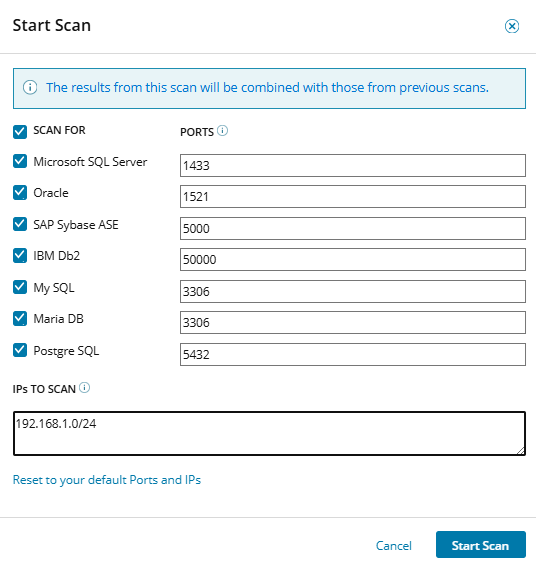
3. Launch the Database Discovery Scan
When you start Database Discovery, DPA:
- Uses the bundled nmap engine (no separate install required)
- Scans the specified IP ranges and ports for supported database services
- Shows scan progress in the UI
DPA runs one discovery scan at a time per deployment, visible to all admins. Scan duration depends on how many IPs and ports you include. You can run multiple scans over time, and the Discover Databases page aggregates findings across all completed scans so you build a living inventory of unmonitored databases.
You can cancel a scan at any point. The underlying network scan finishes in the background, but DPA discards its results if you cancel.
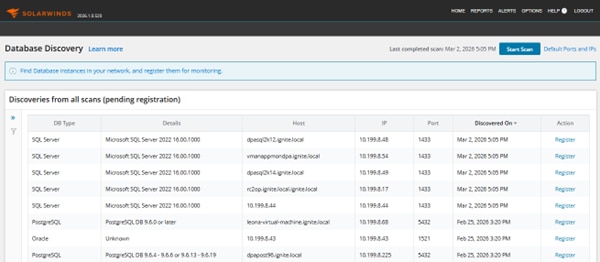
4. Register Discovered Database Targets
After the database discovery scan completes, find the database you’d like to register. Filtering options can be used to help narrow down the list.
You can:
- Filter the results list by database type to prioritize what you want to onboard first
- Click Register next to any discovered database target
- Let DPA open the appropriate registration wizard, pre-filled with IP and port details
Once registration’s complete, that target disappears from the Discover Databases page. Database Discovery only surfaces databases that aren’t yet monitored in DPA, so the list always reflects genuinely unmonitored instances.
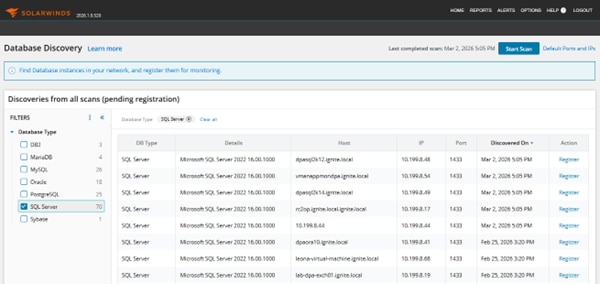
Review Your Discovery Scan Settings
Every discovered database instance that isn’t already registered in DPA appears automatically, including the ones your team didn’t know existed.
From the Discover Databases page, you can:
- Filter by database type (SQL Server, Oracle, PostgreSQL, MySQL/MariaDB, Sybase, DB2)
- Sort by any column (IP, port, database type, discovery time)
- Click Register to open the DPA registration wizard for each target, then return to the discovery page to continue registering additional databases
Database discovery scan results persist in the DPA repository between sessions. You don’t have to rerun discovery every time you’re ready to register more databases; you can come back to the existing results and continue where you left off.
The database that’s been running unmonitored on your network since last year isn’t invisible because it’s hiding. It’s invisible because finding it required work nobody had time to prioritize.
It’s time to find what’s been hiding in the dark and bring it into the light.
Resources
- Download Database Performance Analyzer: Find every database. Monitor every database: Try Database Auto-Discovery in SolarWinds DPA 2026 Today.
- All Database Blogs: Discover a vast range of blogs from database experts and dive into the ongoing evolution of our database monitoring and observability software.
- THWACK: THWACK is the free SolarWinds community where DBAs and other IT pros swap real-world tips, scripts, and solutions for keeping their environments running smoothly.
Database Discovery FAQ
-
What problem does the Database Discovery feature in SolarWinds DPA solve?
It finds database instances that aren’t yet registered in SolarWinds Database Performance Analyzer (DPA), including those created outside standard processes, so you can add them to database monitoring and management. -
How does DPA Database Discovery differ from generic network scanners or native vendor tools?
Generic scanners only report open ports, and most vendor tools focus on a single database platform. The DPA Database Discovery feature is database-aware, it scans IP ranges and ports, identifies supported database types, removes instances already monitored in DPA, and lists only new, unmonitored database targets connected directly to the DPA registration workflow. -
What’s the basic workflow for using Database Discovery in DPA?
From the DPA home page, Options, or License Allocation, open Discover Databases. Review or edit the default IP ranges and ports per supported database type, start a database discovery scan, then use the results list to filter by database type and register selected targets through pre-populated DPA registration wizards. -
How does SolarWinds DPA store and share Database Discovery results?
SolarWinds DPA stores database discovery results in the DPA repository in your environment. All DPA admin users share the same set of discovered database targets and can return later to continue registering instances without rerunning the scan. -
How does DPA Database Discovery affect incident response and database risk?
By keeping an up-to-date list of unmonitored databases and integrating directly with DPA database registration, the Database Discovery feature reduces the effort and time needed to identify and onboard missed instances, which helps lower mean time to detect (MTTD) and mean time to resolve (MTTR) database-related issues.